The Focus Self Service App can be used as a Visitor Registration Device. Visitors can submit their name and other details and mark themselves as onsite for the duration for their visit. While they are onsite, they will appear on any relevant Fire Alarm Roll Calls and also show in the Visitors Report.
This guide will take you through setting devices up to use as Visitor Registration Systems.
We’ll look at:
To enable the Visitor System, you must turn it on via the System Menu. This will display the Visitors section in the main sidebar.
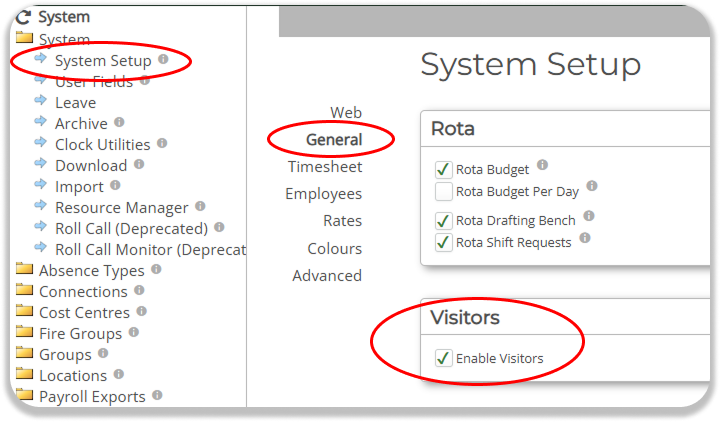
Individual Focus Users can then be granted access to the Visitors tools via the User Setup page.
You may need to refresh your browser before you see the changes take effect.
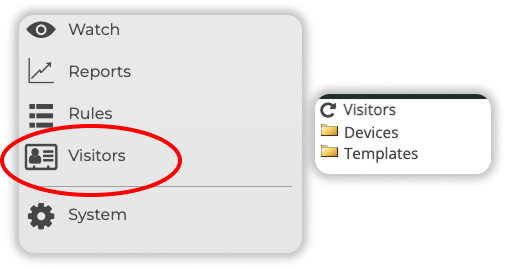
Turning on the Visitor System gives you access to new elements:
This gives you access to the tools to set up a device for using the Visitor System. It shows Templates, which are the rules for the Device, and the individual Devices themselves.
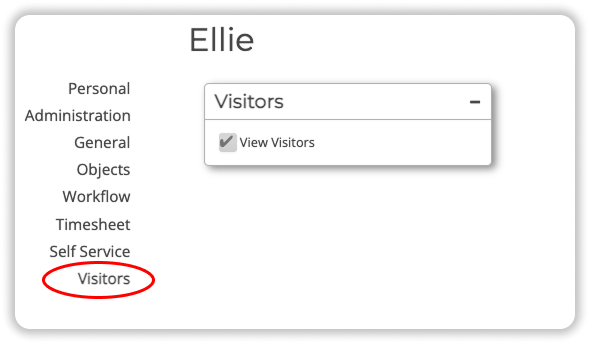
There is a new ‘Visitors’ tab in the User Setup page. Here you can control which Focus Users will be able to see the Visitor Setup options in their Focus sidebar.
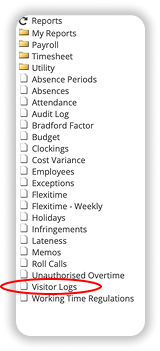
This will be added to your Reports list once you activate the feature. It can be shared and customised like any other Focus report.
A Visitor Template is a set of rules governing what should be displayed to the Visitor. It controls which information is asked for, and what information fields are required.
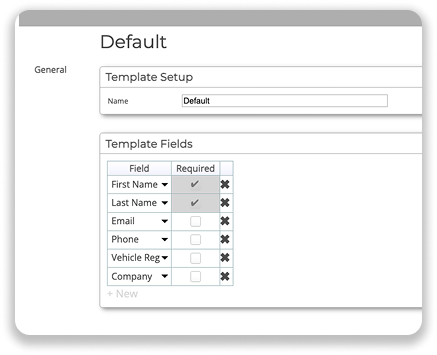
Here you can define what information you wish to capture from Visitors. If you have a car park for example, you may wish to request a vehicle registration.
Currently only a select number of predefined fields are available, although this will be enhanced in the future.
You can use any compatible smartphone or tablet as a Visitor Registration System, although for best results we recommend a dedicated tablet, such as an iPad or an Android Tablet (such as a Samsung Galaxy Tablet).
The devices must be capable of running the Focus Self Service App, but this is the only requirement.
Each Device used as a Visitor Registration System must have its own, unique Device Profile. To set up a new device:
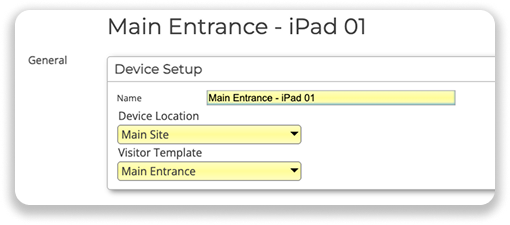
At this point the Device Profile is set up and is ready to be assigned to a physical device.
Next:
This will generate the following information:
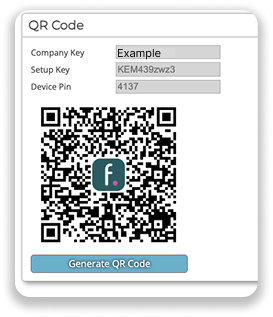
The simplest way to pair the Device to the Device Profile is to
You may also manually enter the device specific Setup Key if the device has no QR Code compatibility. To do this, first type ‘VISITOR’ (all caps) in the Company Key field, and then type the Setup Key showing in the Device Management page. Note that this Key is case sensitive.
Once the device is paired the QR code and Setup code are no longer required - they will be removed the next time you visit the page. The PIN code will remain for your reference.
The Device is now paired and will always open as a Visitor Registration Device.
Once a Device has been Paired with a Device Profile, it is permanently assigned to act as a Visitor System. For this reason it is not a good idea to use a device as a Visitor System and also, for example, an Employee Self Service portal. A dedicated Visitor Device is recommended.
By design, once assigned the Visitor Registration Device is locked in that mode. You can add further security to the device using native device features such as Apple’s ‘Guided Access’, which can ‘lock’ the tablet into a specific app and deactivate the Home button, or swiping from the bottom of the page. See your tablet’s User Guide for options.
If you tap the Focus logo in the bottom right hand corner of the main Visitor Screen you will be asked to enter the Device Pin. Enter this and you can reset the device.

On an iOS device, the only way to reset the app is to uninstall it and redownload it from the iOS App Store. On an Android Device, you can force a data refresh by going into Settings — Apps — Focus — Storage, and then select ‘Clear Data’. This will reset the app.
You can remotely reset the device by either Deleting the Device Profile from the Visitors Section, or by clicking ‘Generate QR Code’ again to pair a new device to that Profile.
In either case, the next time the lost device has Internet access it will lose its connection to Focus and enter an unusable state.
Visitors are greeted with a ‘Sign In’ and ‘Sign Out’ button when they first see the device.
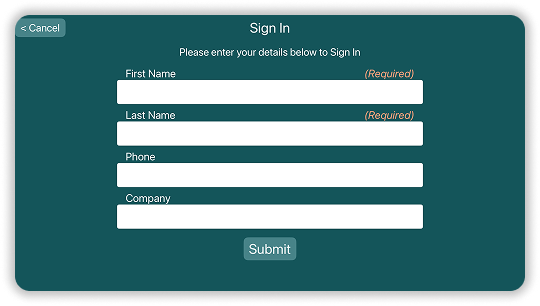
If they choose Sign In, they will be asked for whatever information is set up in that device’s Template. They can navigate between fields by tapping ‘Enter’ or the keyboard equivalent. Once they are happy, and they have at least completed all *Required fields, they can submit.
To Sign Out, users tap Sign Out and then enter the first three characters of their name. This will then present them a list of all currently Signed In people who match those three Characters. From here, they can select their own name and Sign Out.
The three character requirement is a design feature to minimise the amount of data shared.
While a Visitor is Signed In, they will appear on the Fire Alarm Roll Call for any Location that the Visitor Template in question is assigned to.
If they have entered a phone number as one of the fields, you can call them directly from the Fire Alarm Roll Call.
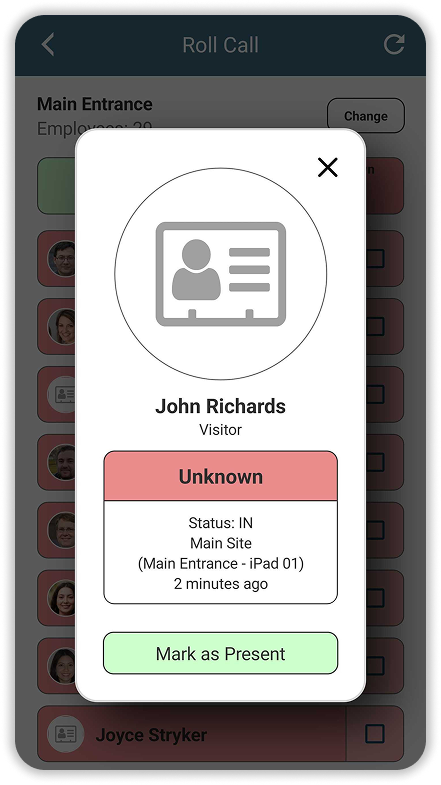
Otherwise, you can mark them as ‘Present’ in the same way as any Employee.
Visitors will only display on the Fire Alarm Roll Call if they are still ‘In’, and fewer than 24 hours has passed. After 24 hours it is assumed they are no longer Visiting but have not Signed Out correctly.
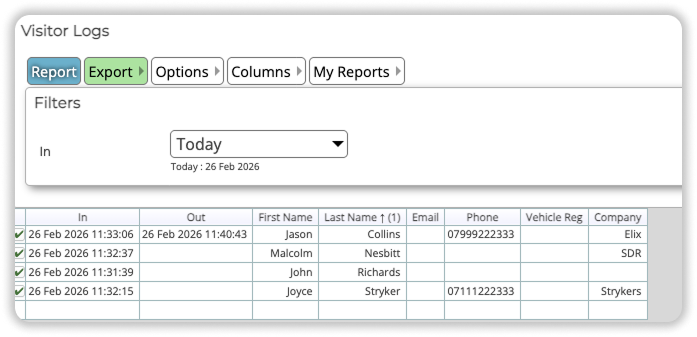
The Visitor Log is available in the Reports Folder. It can be customised and shared in the same way as any other Focus Report.
Here you can view Visitor traffic across any time frame, or by selecting ‘Today’ you can see a live snapshot of who is currently Visiting.
Use the Focus Wave Fire Point NFC Tag to allow your team to mark themselves as 'safe' in the event of a Fire Alarm.

Create interactive checklists for your Fire Officers to use as Roll Calls in the event of an evacuation.

Use the Roll Call Monitor to collate the information of every individual Roll Call you have running.


